AUDIO WORKSHOP

DIY audio blog for projects, schematics, PCB's, designs, electronics, mods

AUDIO_WORKSHOP

Unbalanced to Balanced Converter For Audio With DRV134

Here is a quick project on using the DRV134 for converting an unbalanced to balanced signals. This type of signal transmission is usually associated with the professional audio or PA systems. It is a widely spread common “knowledge” that balanced signals sound “worse”. Those things are not top priority in most of the so called audiophile systems. However I don’t suffer from such prejudice.
I think balanced transmission lines are actually superior to the unbalanced once if done properly. Sometimes you might hear that balanced isn’t worth the efforts for such a short distance, like home audio. That might be true. However It’s a common knowledge that balanced cables have almost (if any at all) no impact on the sound quality. Properly terminated balanced line will give the almost perfect connection between two stages. And the best part is that you don’t need to shell out your one month salary to buy those super-duper unbalanced audiophile quality cables anymore. All it takes is a good studio quality cable and some nice well made connectors. Personally I’m more than happy with Neutrik connectors.
To make a good balanced line you need a proper termination for the both ends of the line. That’s where the unbalanced cables shine – they don’t need any termination. If you have a poor termination to the balanced cable you will end up with poor sounding system.

Examples

So how to do it? Well one way is to go fully discrete. That will give some great results but requires a lot of skills and will cost a lot. There is a more conventional way using opamps. Here is an example:
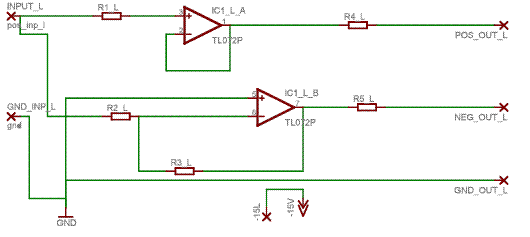
This one is the most basic way to make a unbalanced to balanced convertor. This one however does not present an equal output impedance to the bots sides of the line. Its only pros are that is cheap and can do the job if you have nothing else to use.

A more advanced circuit is shown here:

This one is used in my professional CD player – the Sony CDP-2700. IC403 is the input buffer, which provides impedance match to the low-pass filter of the previous stage. The conversion is done by the two opamps (actually it’s one dual opamp IC404) and it’s pretty straightforward. You have one inverting and one non inverting amplifiers with the same gain and mutual feedback. The trimmer at the output is there to allow setting for maximum performance. It helps to balance the two stages by improving CMRR and minimizing distortion. This is because you can never have discrete resistors precisely ant tightly matched. This circuit will require a scope and distortion analyzer for the best performance. The other way is to buy some large quantities of resistors and measure each and every one. This will of course come at a price and will require a lot of time and efforts.

The best (and easiest) way is to go fully integrated and use one IC to deal with all. These have internally laser trimmed resistors and allow for the best common mode rejection ratio (CMRR) and minimum distortion.

The schematic

One such IC is the TI’s DRV134 and DRV135 AUDIO BALANCED LINE DRIVERS. These offer a complete solution for balanced audio signal transmission. This is how the circuit looks like:

The schematic is pretty much the suggested in the datasheet here:

http://www.ti.com/lit/gpn/drv134

For this project I’m using only high quality parts. By high quality I don’t mean overpriced audiophile dream parts of course. All electrolytic caps are Panasonic FK. Industrial quality, long life, high temp reliable capacitors – http://www.farnell.com/datasheets/731857.pdf
Those are improved version of the FC series.

Low value smal caps are ceramics. Standard X7R caps. Nothing fancy here. All resistors are metal film in 1206 case size. For this project I’m using these Panasonic resistors:
http://www.farnell.com/datasheets/391390.pdf

The XLR connectors are Neutrik – NC3MBH series:

http://www.neutrik.com/en/xlr/b-series/nc3mbh

This is how the board looks like:
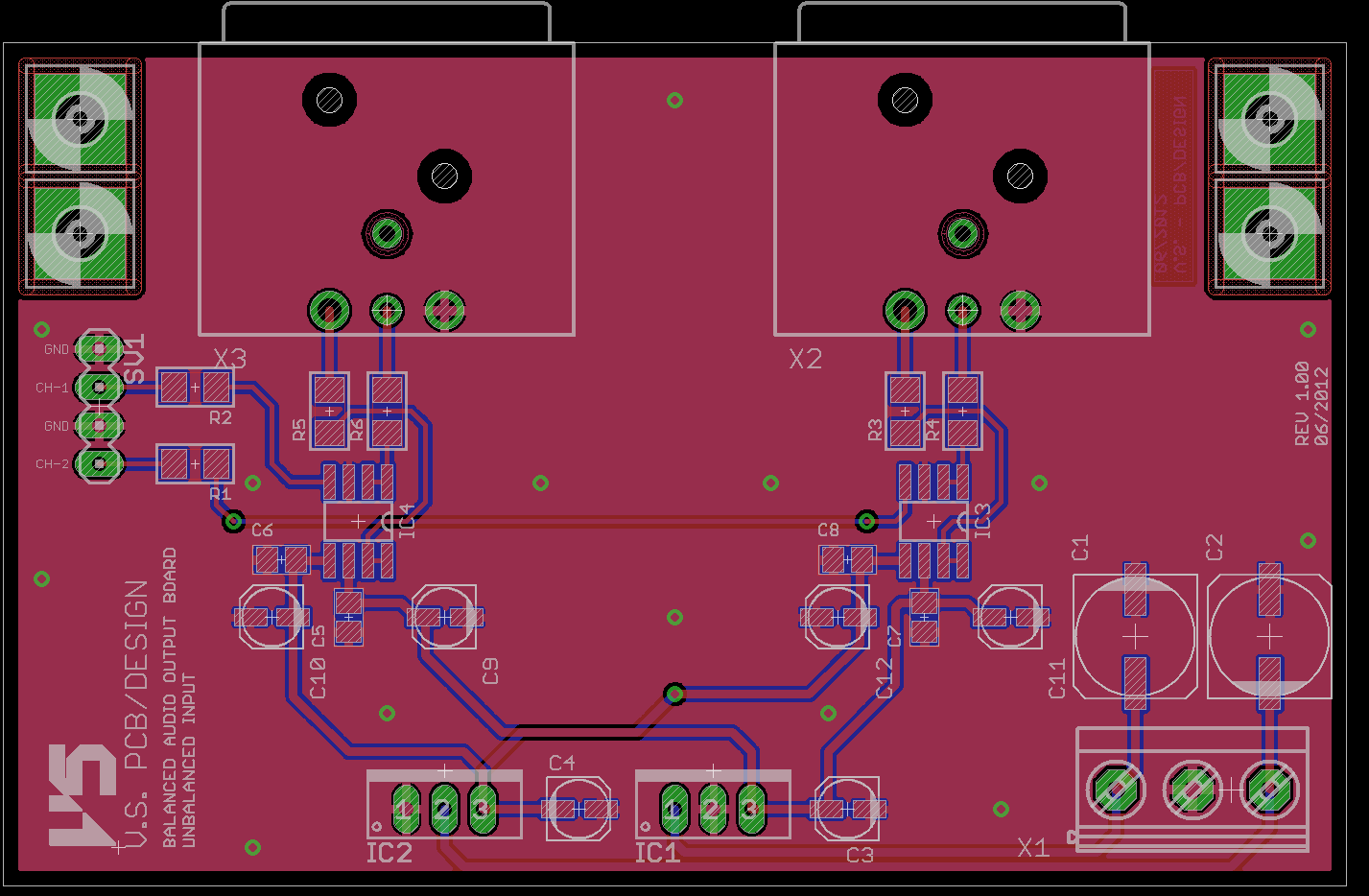
The project is finished on a two-layer board to allow maximum shielding via ground plane and lowest noise.

The complete manufacturing files are available for download HERE


Complete schematic is available for download HERE
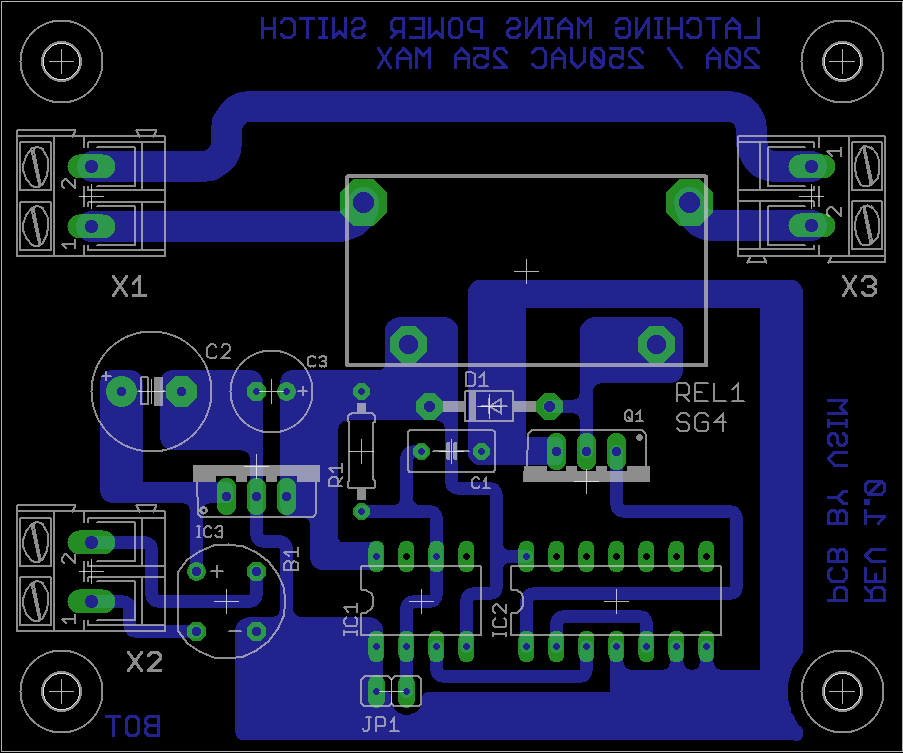
PLEASE NOTE – This project is available for personal use only. Any commercial usage is NOT ALLOWED.
THANK YOU FOR READING

Cadsoft EAGLE – Image And Logo Adding To PCB

Whether you’re trying to put a bit of a personal touch to your PCB design or you are in need to use a company logo on your product one thing is for sure. You will need to somehow transfer the image from the graphics software to the EAGLE environment. Here is one approach I’d like to share.
This is a typical workflow of  how to put images onto a finished PCB design. Once completed this approach will allow you to quickly and easily insert your logo or any other graphics into your finished design.

First thing we have to do is to chose a proper format for our image which will be later transferred to EAGLE. When designing you logo or choosing an input image you need to follow some basic rules.
– Use a two color image. Preferably black and white image.
– Use a high resolution image. Low resolution images will result in uneven and distorted edges of the output. This will look bad on the PCB.
– Don’t use a image that is too complex for your PCB manufacturer to print on the PCB. You should be aware of what are the manufacturer’s capabilities for printing graphics on the PCB’s.
– Don’t use images or logos that include shadows or reflections. These can not be rendered in two colors and later on transferred on the PCB. If shadows or reflections are an important part of your logo design you better not use it on the PCB and stick with a simple text printing.

Following those simple rules will ensure you have a great end result. You PCB’s will have a professional look.

Now lets get started.

For this demo I will be using a simple schematic that is already transferred to a PCB and finished. Here is the PCB ready for a logo:

Now for the logo part. We will need something simple and understandable for EAGLE to put onto the PCB. This means we need a two color monochrome image. For this demo I have created a simple demo image:

It is important to say that you need a *.BMP file that is monochrome. Beware that some image files are not two color though they look so. For example, the image shown is not two color. It was created as a 24 bit *.BMP file. EAGLE can not read this image. What you need is to convert this image to 1bit monochrome *.BMP file. This is easily done using Windows Paint. Just open the image and use
Save As -> Other Formats -> Monochrome Bitmap
You will want to save the file with a different name and not overwrite the original *.BMP file. Paint will warn you that saving in this format will result in a loss of information. This is not critical. Please note that for this demo I am using a large resolution file. It is 2545px by 615px.

Now that we’ve prepared the input file it’s time to transfer it to EAGLE.

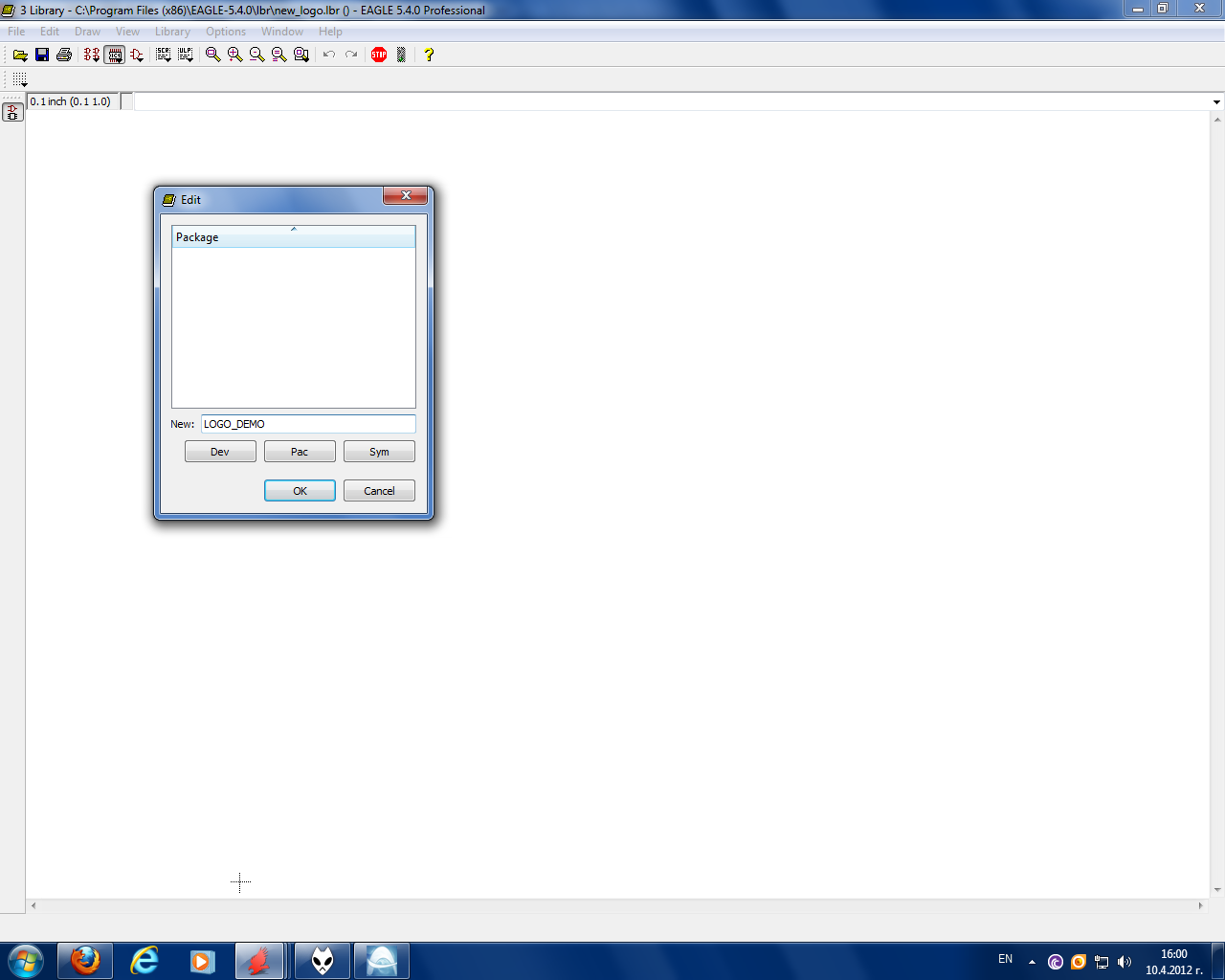
First thing you need to do is to create a new library. For this in control panel select File => New => Library

Use Save As to save this new library with a suitable name. For this demo I’m saving it as new_logo.lbr Inside the library editor click on Package button to open the package editor. Type the name of your logo in the popup window and click OK. Click Yes to confirm the new package creation.

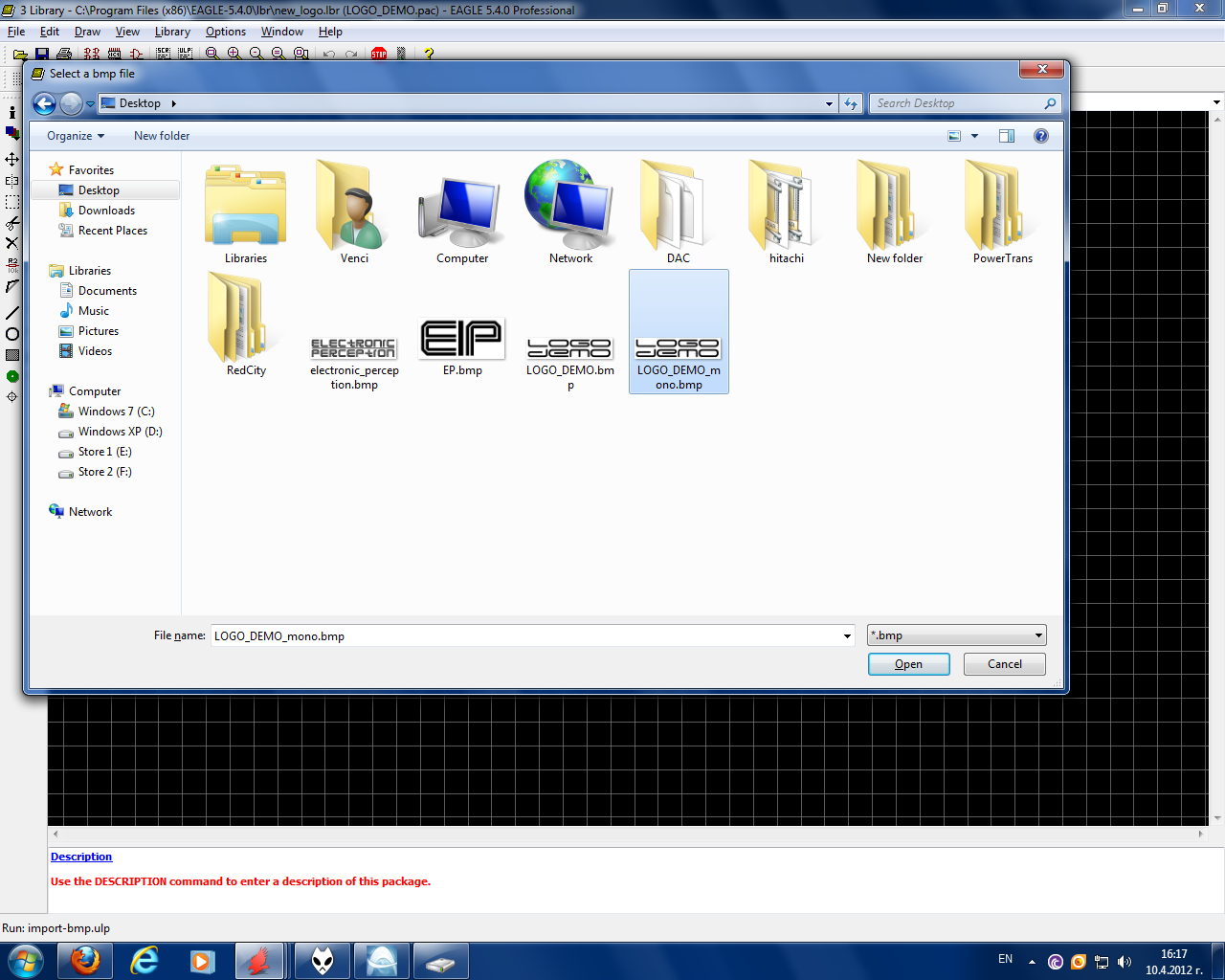
Now that you have the new package you can import the *.BMP. In the command line type the following command:

run import-bmp.ulp

Click OK and a browse window will popup asking for the input file. Find the location of the file, select it and click Open.

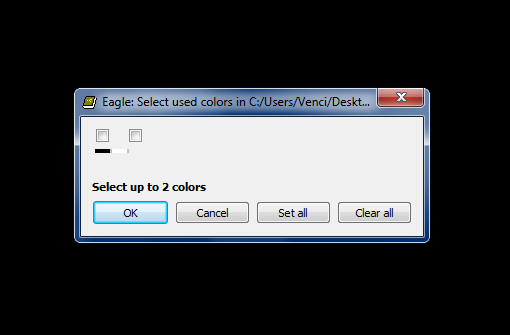
Next you will have to select the color which will be used to render the output.

Experiment here to see what is the output result 😉

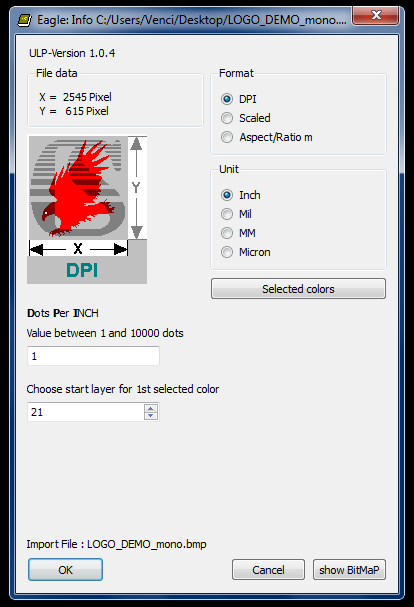
After selecting the input color another window will show. This one allows you to scale the output render to suit your needs. For this demo I’m using the following settings:

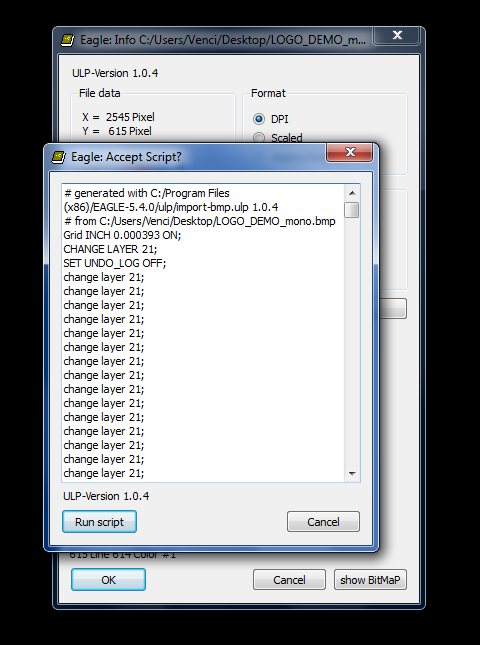
Under Format table I use DPI setting. This is an easier way for me to predict the render actual size. Units go to Inch as DPI means DOTS PER INCH. Under Dots Per Inch table you must enter the scale factor. This is – how many pixels will fall into 1 inch. For the demo I have used an image that is exactly 2545 pixels in width. This means that if I wanted a 1 inch wide logo on my PCB I would enter 2545 here. To get a larger output you simply need to put less pixels per inch. For example a 5 inch wide logo will require 2545/5 = 509 pixels. This is what you enter here. Under Chose a start layer for 1st selected color enter – 21. This is the tPLACE layer which is used to create the silkscreen printing. When you are finished entering all the values click OK and wait for your PC to calculate the script. On slow PC’s this might take some time. This is what you should see once the script calculation is finished:

This means that you are almost ready. Hit Run script button and watch the logo appearing on you screen.

You might spot a small line at the bottom left corner of the logo. This is actually a text that shows the input file used for the render. Go ahead and delete it as this is not used.

If you have reached to this point you are almost done. Now all you have to do is to save the library changes (Ctrl+S).

Go to Control panel and use View => Refresh. Find the new library that you have just created and click the little green dot on the right of it. Now go back to the layout editor when you see your PCB. Click Add and find the library. The logo should appear as a component now. You just enter it straight onto the PCB. You can rotate it as you want.

This is how the PCB looks now:

Though this method is a bit long it gets really easy to use once you have created a set of logos you need. I hope you enjoy this feature of EAGLE and use it to create more professional looking PCB’s

*********THANK YOU FOR READING THIS ARTICLE*********

TDA2050 – High -end version. The Gainclone Rival.

The Gainclone amplifier is well know amplifier among the audio fans. It’s based on the National Semiconductor’s LM1875 chip. This article shows an alternative design using the TDA2050 by ST.
The original implementation of the chip can be found inside the datasheet:
http://www.datasheetcatalog.org/datasheet/stmicroelectronics/1461.pdf

The development of the new topology started as a group project in which many people participated. The original forum thread can be found here(in Bulgarian):

http://www.bgaudioclub.org/showthread.php?535-TDA2050-%D0%B7%D0%B0%D0%B2%D1%8A%D1%80%D1%88%D0%B5%D0%BD

The amplifier includes a delay circuit that keeps the speakers disconnected for few seconds while the amplifier settles to its nominal working condition. This will prevent the amplifier from introducing the unpleasant pops in the speaker during power up.

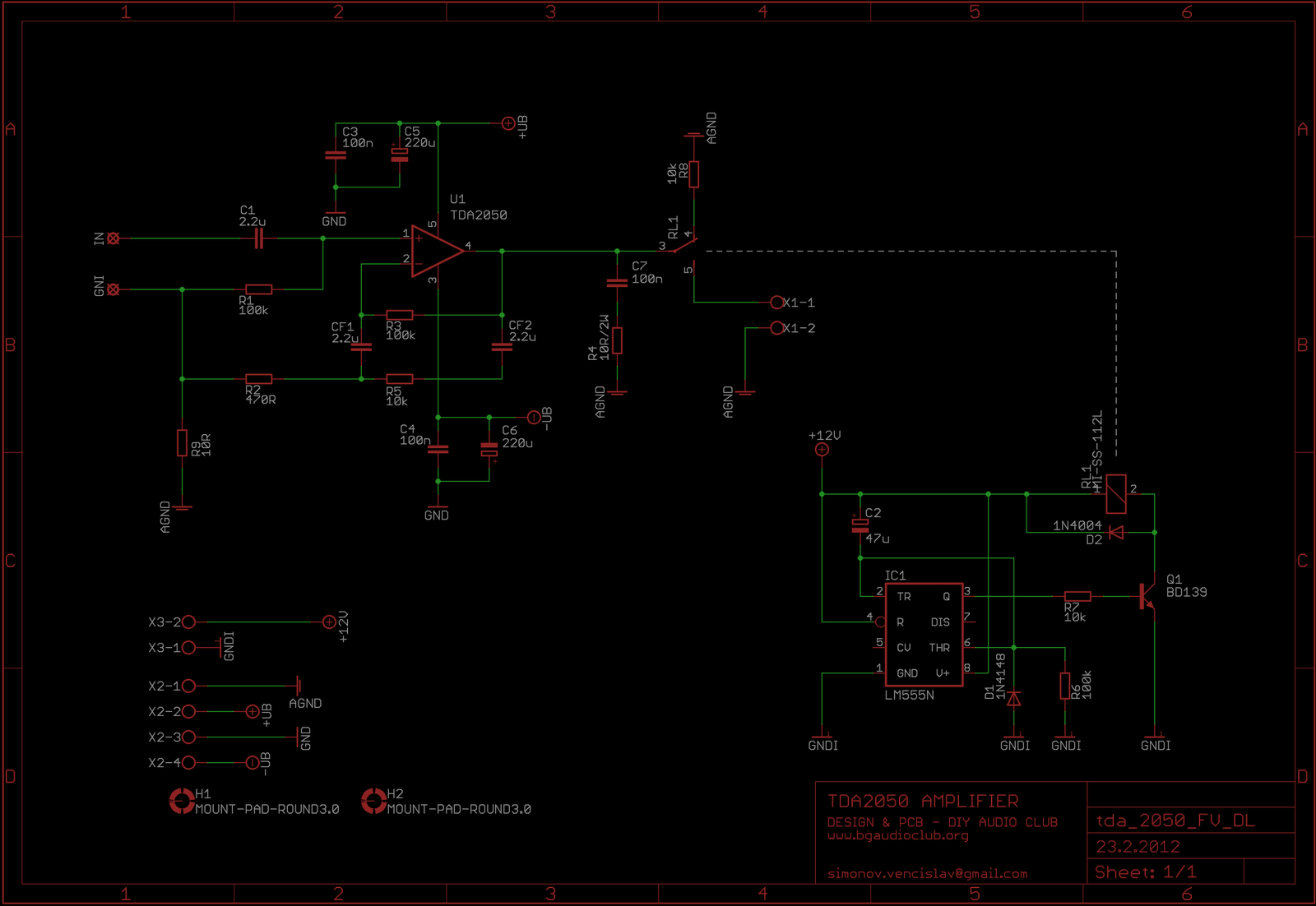
Here is the complete schematic for this project:

As you can see the NFB loop was modified.

Here is the original schematic suggested bu ST:

Comparing the two schematics we can see the differences. The modified circuit has the following advantages:
1. Eliminating the electrolyte capacitor in the NFB loop and using a non electrolytic one. This results in a lower overall distortion and sound improvement.
2. Using a low value resistor in the NFB loop (R2) we introduce a much lower noise in the signal path.
3. Using two identical capacitors at the input and NFB loop will result in cancellation of the any kind of distortions introduced by the capacitors due to the differential structure on the amplifier.
4. No DC gain. This results in no DC offset at the output.

To prevent the circuit form unwanted roll off at low frequencies, the NFB was further modified to prevent DC gain, but allow low frequencies to be amplified with enough gain.

The speaker delay circuit was designed by a fellow forum mate Bis and was adapted to suit the needs for this project. It is a simple but efficient. It uses a standard 555 timer. The time delay is set with the value of C2 capacitor. The relay used in the schematic is a one pole 10A power relay. I recommend Omron G2R series relays here. But you can use any other brand you like. The schematic shows a low cost version with relay by Goodsky:
http://store.comet.bg/bg/Catalogue/Product/5180/?dl=2122

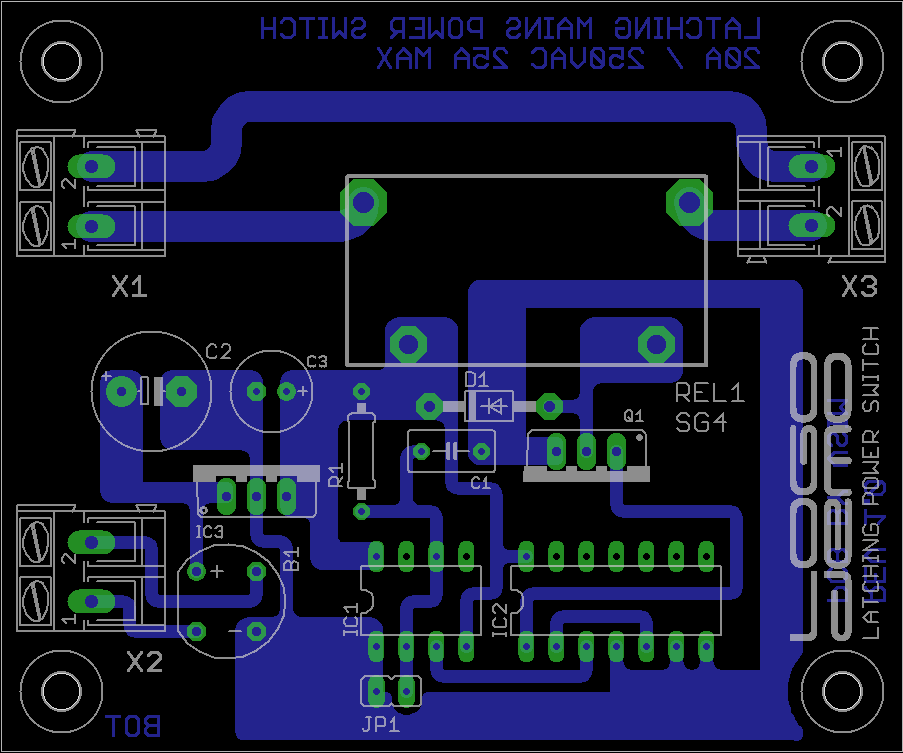
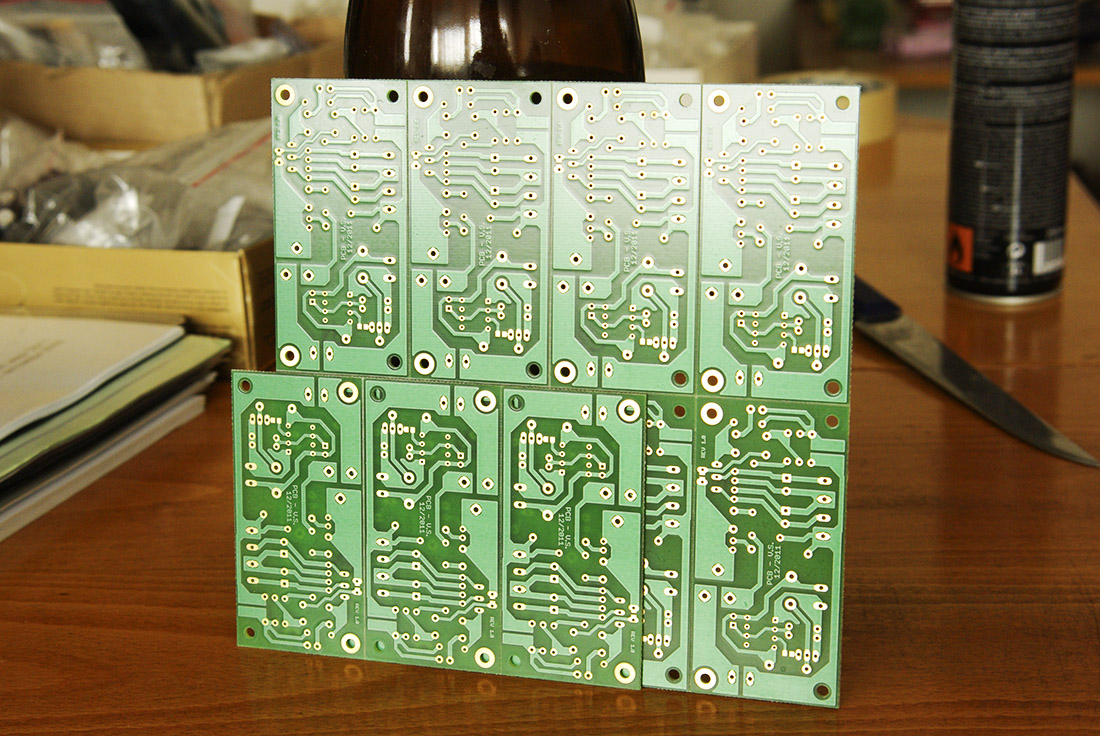
This is how the PCB looks like:

Few words about the grounding. You will notice that the signal ground and the power ground are separated. Each ground should be connected with its own ground wire directly to the center of the power capacitors. (pin1 and pin 3 of X2 terminal). The 12V supply should be coming from a separate low power transformer.

The original PCB artwork is available for download HERE and as usual the design is free for personal usage. The commercial usage is of course not allowed.

THANK YOU FOR READING THIS ARTICLE

SSM2017 Line Preamplifier – High Quality Design

This page will show you how to use the SSM2017 as a line preamplifier. With some clever designing a very high quality preamp could be build at affordable price.
For those of you unfamiliar with the chip, here is the datasheet:
http://www.analog.com/static/imported-files/data_sheets_obsolete/139484016SSM2017.pdf

Now some few words about this device. It has been designed as a microphone preamp with selectable gain. It requires only one external component – the gain set resistor. As a microphone preamp it was designed to work in harsh environment, long cables, signal pollution, noise etc. Despite that the SSM2017 is able to achieve extremely low noise performance and high gain. This makes it perfect for a normal line preamp with selectable gain.

Now the SSM2017 is obsolete. Few replacements are available from few manufacturers.

AD’s SSM2019:
http://www.analog.com/static/imported-files/data_sheets/SSM2019.pdf

TI’s INA217
www.ti.com/lit/ds/symlink/ina217.pdf

THAT’s THAT1510/THAT1512
LINK

THAT’s IC’s have a superior noise performance at low gains so those are preferable. They are a drop in replacement to SSM2017/SSM2019 but a different values of the gain set resistor must be used because of the different input stage of THAT’s IC’s.

Whichever  IC you chose to use, a high quality line preamp is the result. Another interesting thing is the REF pin. It allows us to design a servo. This way we can null all the DC offset at the output and remove any capacitors from the audio path. For this purpose we need a low cost FET input operational amplifier. TL071 is the right choice. The servo is not in the signal path so the servo opmap quality is not critical.

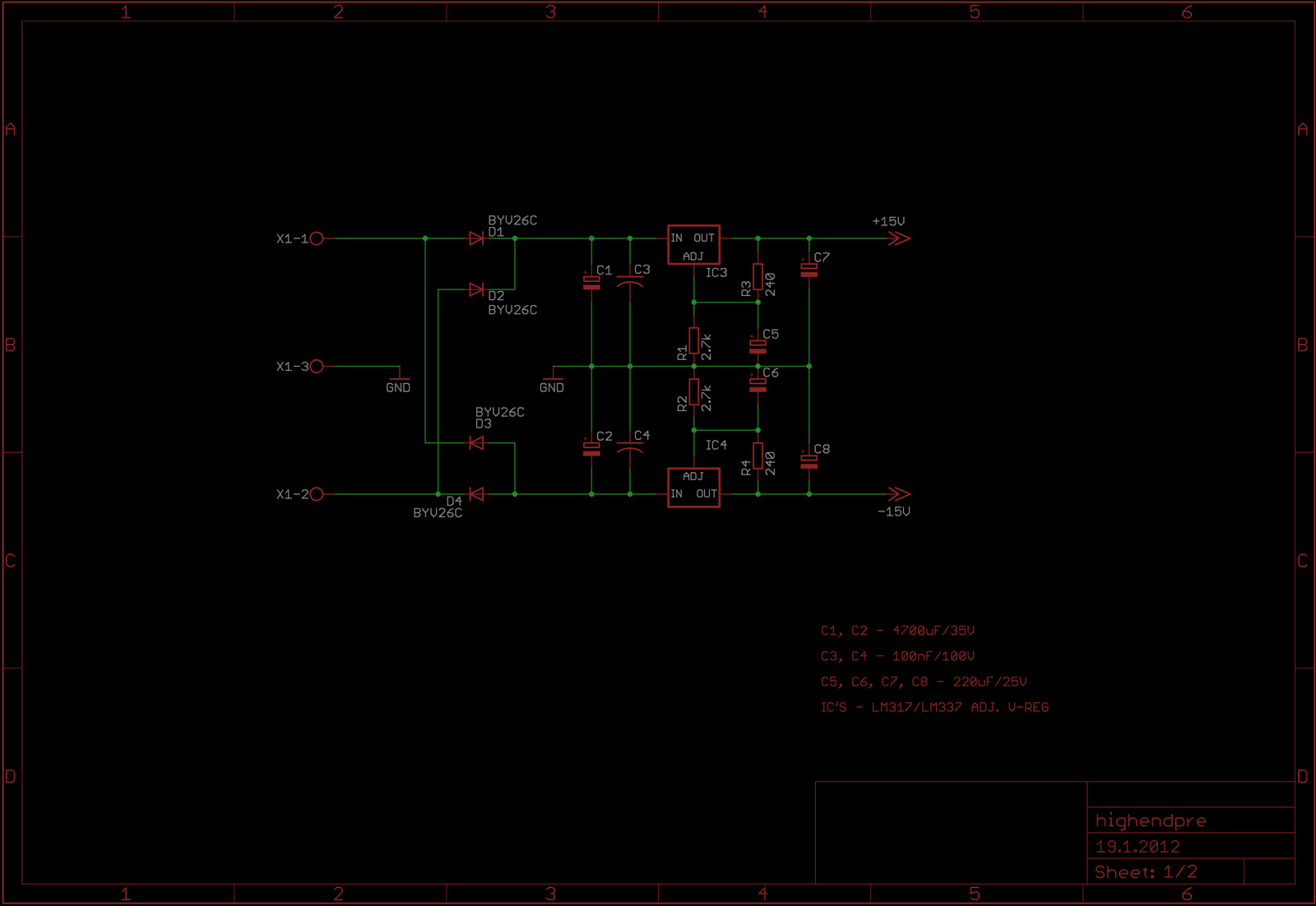
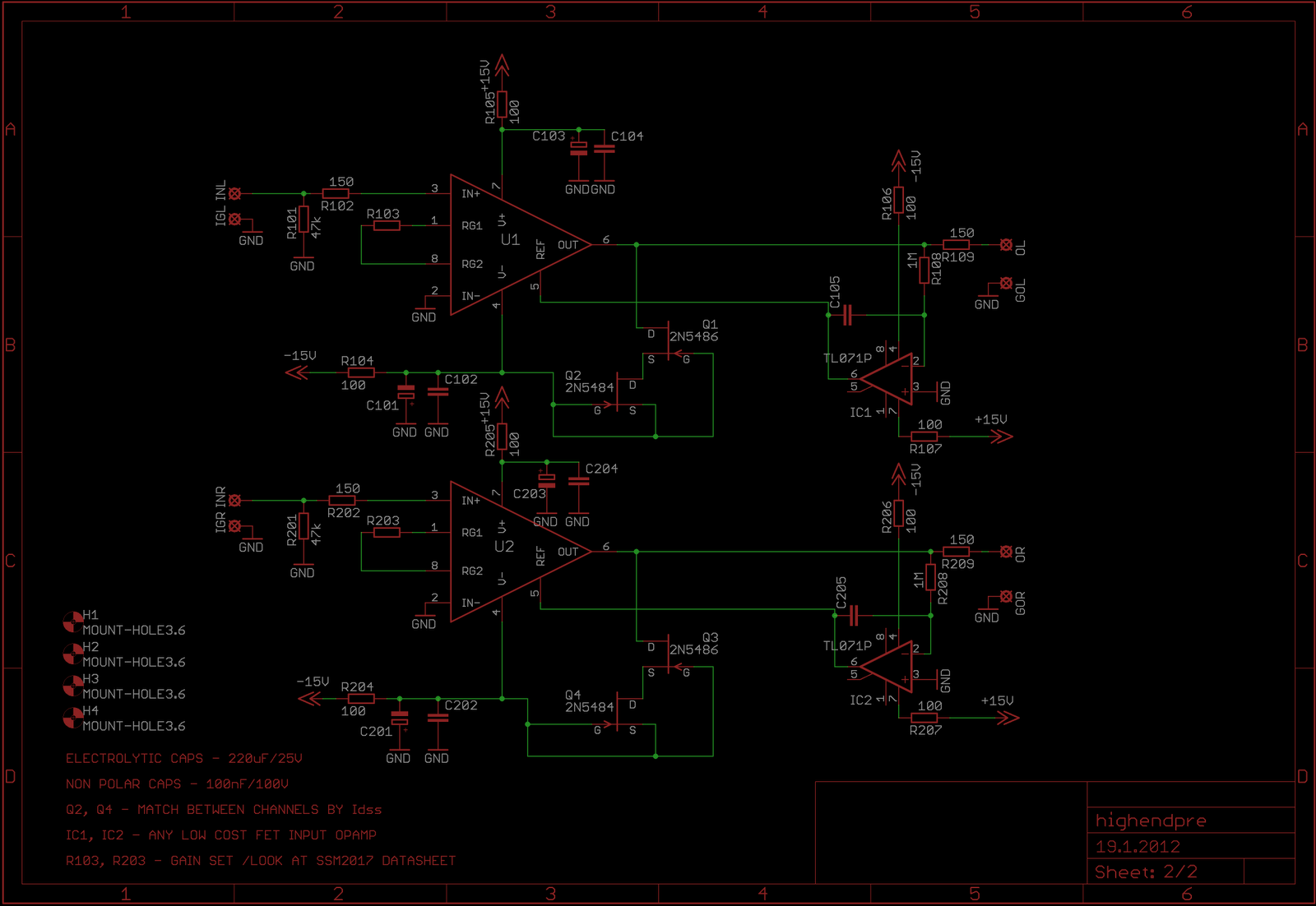
Here is the schematic for this project:

The PSU is pretty straightforward. Two adjustable vregs and filter caps. Nothing fancy here. Use good quality industrial capacitors (Panasonic FC, NCC KY series, Rubycon etc.).

Now for the stage itself. The power supply goes trough an individual RC filtering to each IC. This helps reducing noise even further. Again good quality parts are used. All resistors are metal film to help keeping noise low.

The SSM output is forced into class A operation using a JFET cascodes ad the outputs. This increases the overall performance of the stage. A better sound is the result as well as better driving ability reducing the interconnect cables negative effects.
It is important to match the loading JFET’s so that the two SSM’s work under same conditions. Because the line stage is meant to drive high impedance loads, no high currents are needed. That is why the 2N5484 FET was used. It has a typical Idss of 1-5mA. For our application a value of 2-3mA is more than enough. It is important for the upper JFET to have a higher Idss rating. That is why the 2N5486 JFET was used in this place. It has a typical Idss rating of 8-20mA so no matching is needed here.

The whole project is assembled on a single layer PCB including the rectifier. The original PCB artwork is available for download here: >>> [LINK] <<<

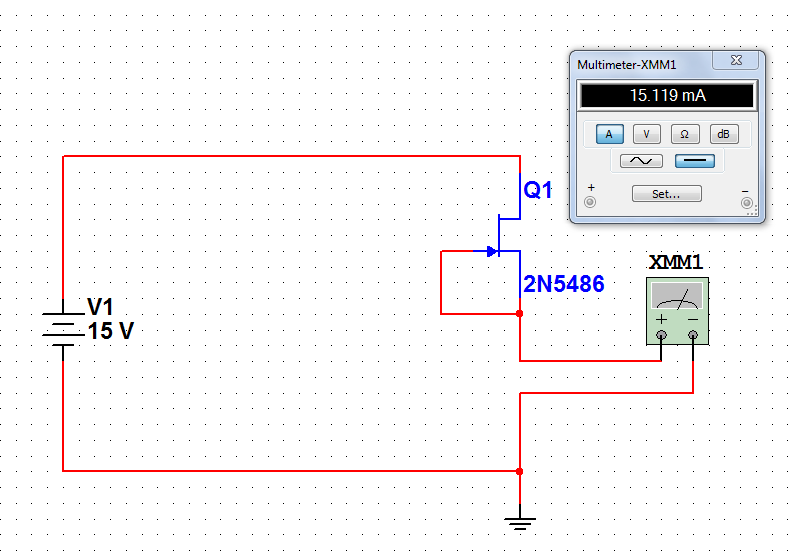
Now some few words about matching JFET’s by Idss. This is actually a very simple job. All you need is a voltage source and a multimeter. Here is the testing schematic:

Simply tie together the gate and the source pins and apply voltage to the drain pin. Connect the  positive node of the ammeter to the gate and the source and the negative node to ground. The JFET will saturate at its own Idss. Please note that the Idss value is temperature dependable. Let the JFET to settle for about 10min and then note its Idss. Repeat the procedure until you find two closely matching devices.

Attention: This design was provided for personal usage only and is FREE for such purpose. Commercial usage is not allowed!

THANK YOU FOR READING THIS ARTICLE !!!

Diamond Buffer Headphone Amplifier

Here is a truly classical implementation of the diamond buffer. A headphone amplifier.
There isn’t much to be said about this topology. It’s pretty popular and is used in variety of applications. One application is buffering an opamp’s output so that it can drive low impedance high capacitance loads like a pair of headphones. Here is a schematic showing the diamond buffer as a current booster for an opamp:

The gain is set by the resistors R5 and R2. If you are using NE5534 the C6 capacitor is a must when gain below 3 is set. For more info on this read the 5534 opamp datasheet.

The buffer is biased in pure class A at about 300mA 30mA. That will give a plenty of headroom for plenty of voltage swing. To calculate the quiescent current use the following equation:

    \[ I_{q}=\frac{V_{cc}-V_{be}}{R}; I_{q}=\frac{15-0.7}{470}; I_{q}=30mA; \]

This amp will output a substantial amount of power so it must be used with care. Always switch it on with a volume pot set to minimum. It’s very easy to damage you hearing so be warned!

The PCB artwork is available for download HERE. You need two PCB’s for a stereo application.

**********THANK YOU FOR READING THIS ARTICLE**************

Page 9 of 11

Powered by WordPress & Theme by Anders Norén

AUDIO WORKSHOP